
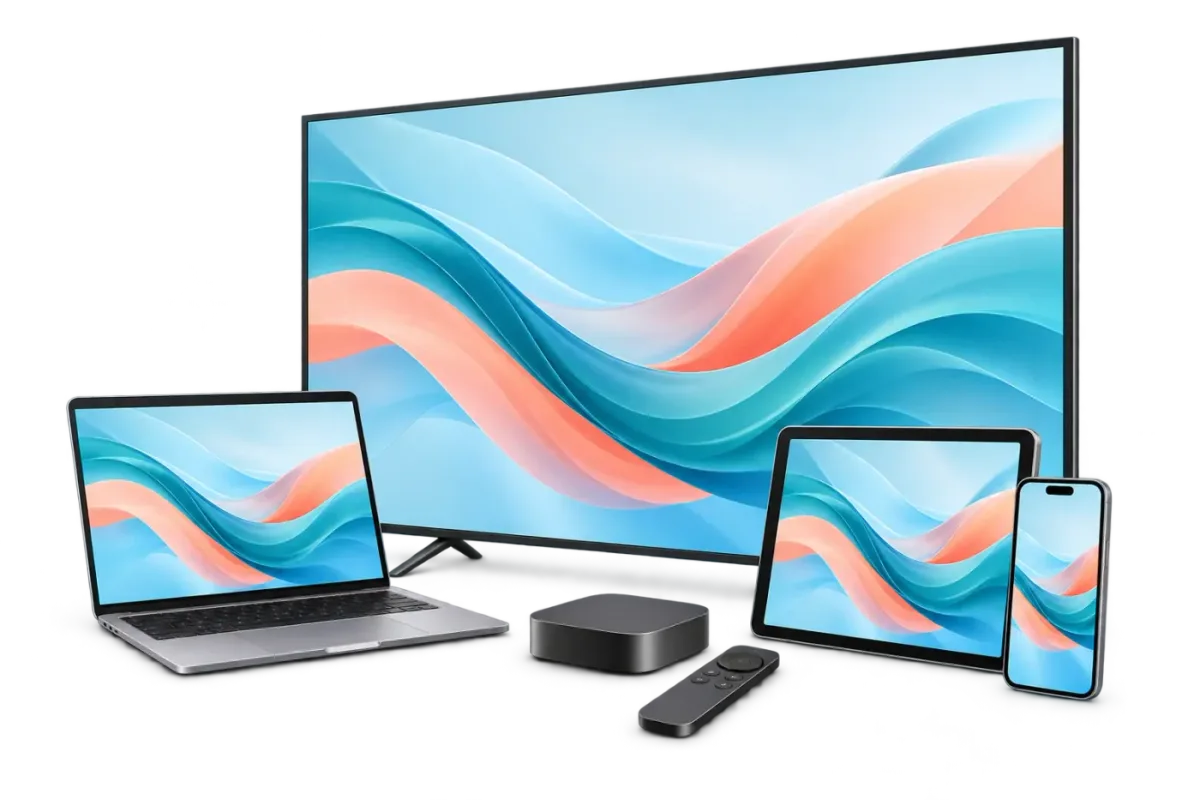
Made for your kind of screen

Your screen. Your Stream King IPTV.

The living-room TV. Your tablet on the sofa. A laptop at your desk. Choose a compatible player and bring Stream King IPTV to the screen that fits the moment.

Check the device, the app and the connection. Then test them together.

A television, laptop, tablet and phone for choosing a viewing setup
Your screen. Your player. Your viewing time.

What works with Stream King IPTV? A device that offers a compatible player, a supported account login and a steady internet connection. App choices vary by model, software and country. Use this guide to find a setup route; individual player compatibility needs a check on your own screen.

Choose your starting point

One service. Plenty of ways to watch.

Six device families, with the check that matters most for each. Select yours for setup notes.

01

The main event

Smart TV

Keep the big screen at the center of your setup. Samsung, LG and Google TV each have their own store and supported apps.

Check first

Find your TV’s exact model and country setting. Some TV players use a device key or charge a separate app fee.

Set up my Smart TV
02

Small device. Big-screen choice.

Streaming stick or Android TV box

A compatible HDMI stick or box gives your TV another app store. Look at the actual Fire TV, Google TV or Android TV model you own.

Check first

Use its official store. Operating systems differ, so an Android player is not automatically available on every Fire TV.

See stick & box setup
03

Your Apple screens

Apple TV, iPhone or iPad

Choose a player in the App Store on Apple TV HD or 4K, iPhone or iPad. Match the player’s login options to the account you receive.

Check first

Older Apple TV models may not have an App Store. AirPlay and casting depend on the player and receiving device.

Set up my Apple device
04

A screen close to hand

Android phone or tablet

Use Google Play on your Android phone or tablet. The touch keyboard is handy when entering your first account login.

Check first

Confirm the player supports your credentials and review any app fee. Check your data allowance when watching away from Wi-Fi.

See Android mobile setup
05

Your desk becomes a viewing spot

Windows or Mac computer

Windows and Mac can use a compatible IPTV player. Some desktop media players can also open a network playlist.

Check first

Get software from its official store or developer. Playlist playback does not automatically include a full EPG interface.

Set up my computer
06

Worth checking first

Another set-top box

MAG, Roku and other set-top boxes can have different stores, portals or account requirements. Start with the exact model.

Check first

Ask support before choosing a plan. We do not claim a verified setup for every box or player.

Check another device

The app and the account

Two parts, working together.

Your subscription supplies the available live TV and on-demand library. The player is the independent app that displays categories, search, favorites and the guide.

  • Check for an Xtream Codes login: server URL, username and password.
  • If a player needs M3U or a portal instead, confirm that workflow with support.
  • Read any developer fee or activation conditions before installing.
See the account setup steps

Make room for a better test

Try the connection you will actually use.

Test at the screen’s usual location and at the time you normally watch. If Wi-Fi is unstable, try Ethernet where the device supports it.

  • Play a few live channels and an on-demand title.
  • Open the EPG and check the device’s local time zone.
  • Try your selected simultaneous streams together.

Quality depends on the source and setup. No single speed figure guarantees smooth playback.

Ready for the first screen

A simple test before a longer plan.

Our local trial page helps you prepare a message. Review it and choose WhatsApp or email to send it. Support checks availability and provides the details. No payment card is needed for the request.

Already have credentials? Follow the first-evening checklist.

A few useful answers

Device questions

Do I need to buy a new device?

Start with the screen you already own. If its official store offers a player compatible with your login, you may be able to use it. Confirm the exact model and player before spending on new hardware.

How many screens can watch together?

Your selected plan includes 1–5 simultaneous connections. One connection means one active stream. Installing a player on a device is different from streaming on it; check that player’s own device and activation rules.

Is there a Stream King IPTV player app?

No. Your subscription is purchased through IPTV Services; the player is an independent app. We do not sell player-app activation. A player developer may charge a separate fee.

How can I check an older TV or unusual box?

Send support the brand, exact model, player name and country. You can also prepare a 24-hour trial request. Support confirms availability and supplies any details; preparing a request does not activate a trial.

Platform sources and compatibility notes

Official platform guidance was reviewed October 16, 2026. These are general setup routes, not hands-on tests of every device or player. The same platform can offer different apps in the US, UK and Canada.

Settle on a screen. Then choose your plan.

Choose a prepaid term and the number of simultaneous streams you need. Player fees, where applicable, are separate.

Orders, the 24-hour trial and customer support are handled by IPTV Services at iptvservices.online. The trial needs no card. Terms · Refund policy.